
Importing Excel Documents from OneDrive
You can connect OneDrive directly to EngineRoom to create data sources that stay linked to your Excel spreadsheets. This is useful when your data lives in OneDrive and may need to be updated over time.
If you want to use .xlsx files directly, see Upload or Create a Data Source for standard upload options.
Importing from OneDrive
To import data from OneDrive into EngineRoom:
1) At the bottom of the Data Sources panel, click Upload button.
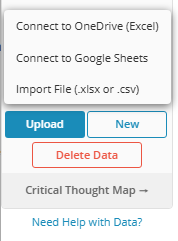
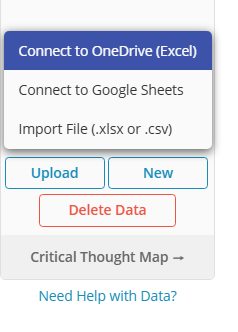
2) Click Connect to OneDrive (Excel).
3) When prompted, choose your Microsoft account and login.
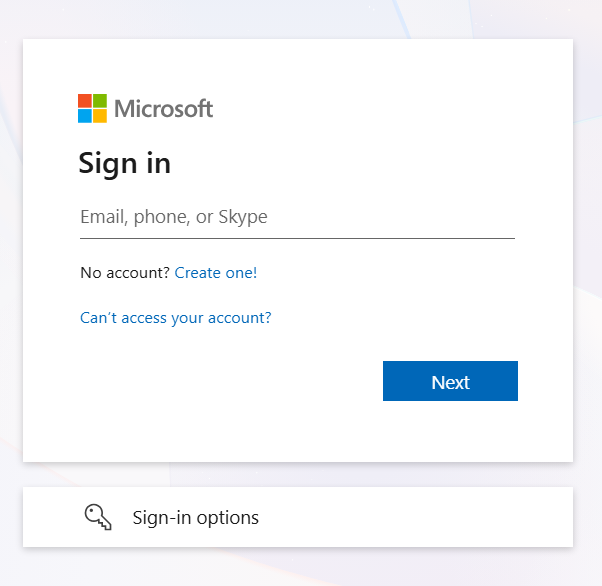
- Note: Organizational policies may restrict access, but there are no additional EngineRoom-specific permission requirements. If you run into an issue, reach out to us or contact your Admin.
4) From the list of available Excel documents, select the file you want to import then click Select.
- Tip: Sorting by Last Modified By Me can make it easier to find the correct file.
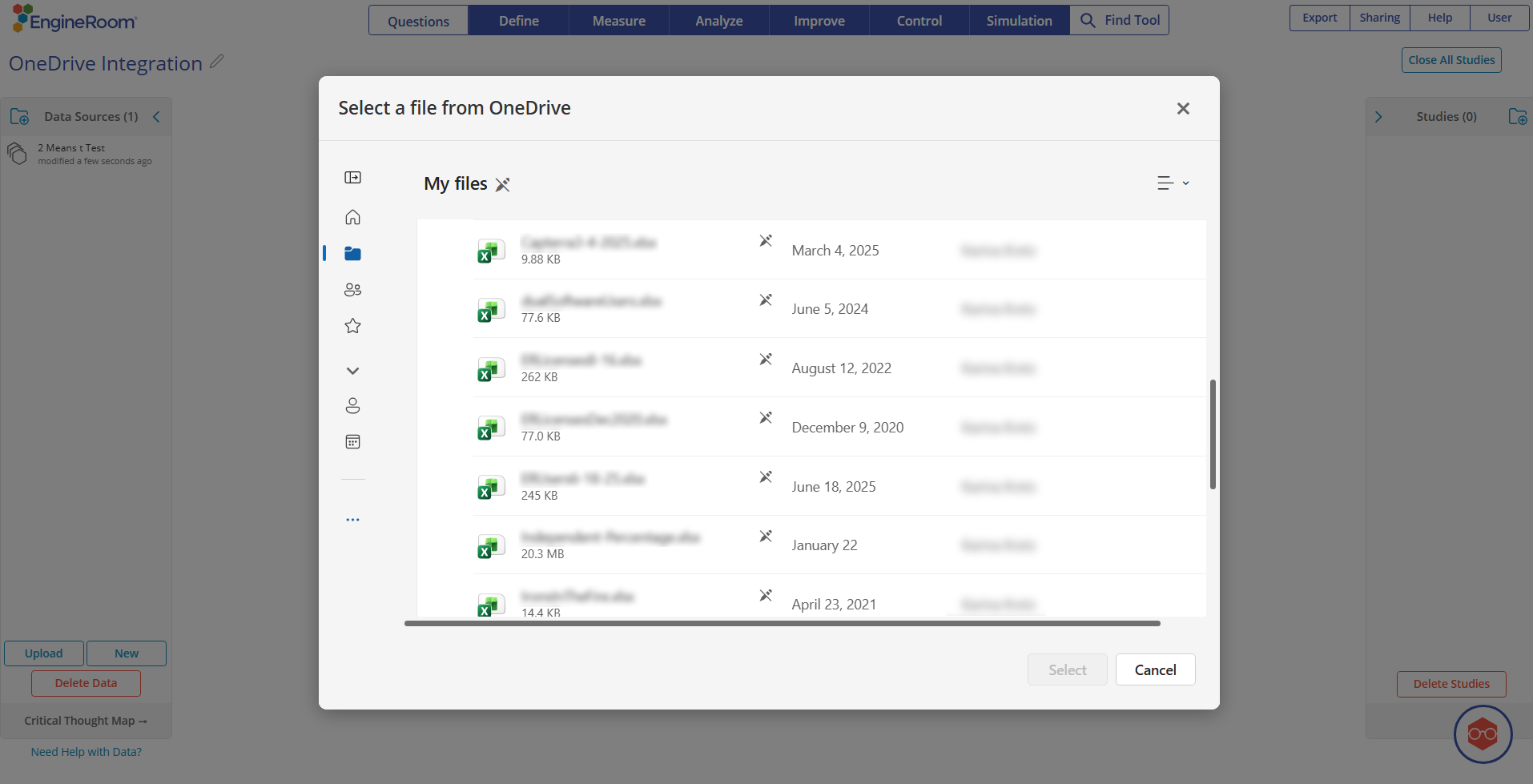
6) Once selected, EngineRoom creates one data source for each sheet (tab) within the Excel file.
7) Use the data sources as usual:
- Click a data source to view its variables.
- Open the Data Editor to preview the sheet inside EngineRoom.
How Excel Files from OneDrive Are Imported
- A single Excel file (workbook) may contain one or many sheets (tabs).
- Each sheet becomes its own EngineRoom data source.
- The connection is one-way, from OneDrive → EngineRoom.
Refreshing Excel Data from OneDrive
EngineRoom does not automatically sync OneDrive. To pull in updates, you must refresh manually.
1) Make edits directly in Excel.
2) Return to EngineRoom.
3) Click the relevant Data Source to open the variables panel.
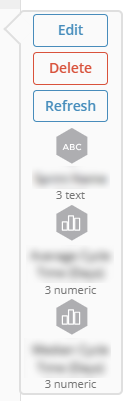
4) Click Refresh.
5) The data source updates with the latest values from Google Sheets.

Editing Data: Important Considerations
While it is technically possible to edit the data inside EngineRoom, this is not recommended for data sources that originate from OneDrive.
- The connection is one-way.
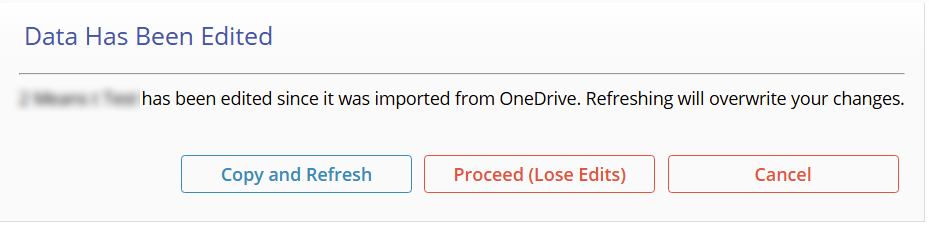
- Refreshing the data source will overwrite any edits made in the EngineRoom Data Editor.
- EngineRoom displays a warning before refreshing to alert you that local changes will be replaced. From here you can make a copy of the existing data source and import the data again into a new data source, proceed (overwriting the edited data) or cancel.
Best practice:
Always edit the data in Excel, then refresh the data source in EngineRoom.
Related Articles
- Upload or Create a Data Source – Learn how to upload files (including .xlsx) or create data sources without third-party integrations.
Was this helpful?